Want to connect Codex Desktop to DeepSeek or other domestic models? This guide covers Codex++ installation, pure API provider setup, Chat Co...
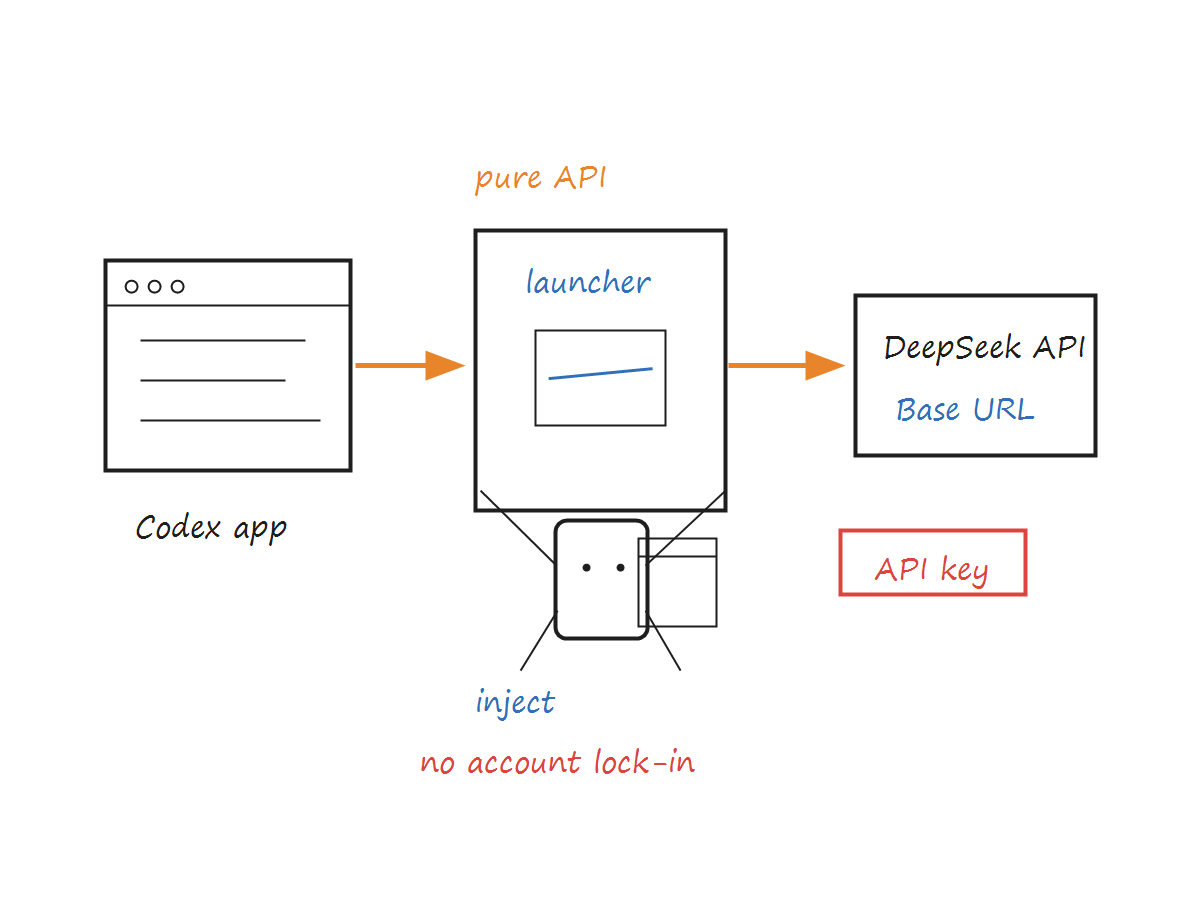
Many developers want to try the coding-assistant experience of Codex Desktop but get blocked by account requirements, network access, API setup, or plugin-entry limitations. The setup described in the source article is: install Codex Desktop, launch Codex through the third-party Codex++ enhancement launcher, and then connect DeepSeek through pure API mode.
The core idea is not to unlock hidden model capability. It is to connect the Codex desktop experience with a third-party API model. Once configured, you can use domestic models such as DeepSeek inside Codex and get code completion, conversational programming, and Agent-style interaction.
It is important to be clear: Codex++ is a third-party tool. It launches Codex through an external launcher and injects enhancement scripts into the renderer process. It is not part of OpenAI's official Codex product. Before using it, evaluate its security, compatibility, and maintenance risks.
The first step is to install Codex Desktop. Visit the official OpenAI Codex page and download the desktop installer for your operating system.
Official entry: Codex | OpenAI
After installation, keep the default state first.
Later, Codex++ generally detects local Codex information automatically, so you usually do not need to manually edit the original Codex installation directory.
After installation, it is recommended to keep Codex running in the background so the system does not silently close it and interfere with Codex++ detection or startup.
Codex++ is an external enhancement launcher for Codex App. It does not directly modify the original Codex installation files. Instead, it launches Codex through an external launcher and injects enhancement scripts into the renderer process.
Its main functions include:
Unlocking plugin entry: allows plugins to work normally in API Key mode.
Supporting session deletion: shows a delete button in the session list.
Adapting API mode: makes plugin functionality more complete in pure API mode.
Download entry:
Choose the corresponding version by system:
System | Recommended installer |
Windows |
|
macOS Intel | Corresponding Intel package |
macOS Apple Silicon | Corresponding Apple Silicon package |
After installation, two entries usually appear on the desktop:
Icon | Purpose |
Codex++ | Daily launch entry for Codex, with enhancement injection |
Codex++ Manager | Manages providers, models, and enhancement settings |
For daily use, launch Codex through Codex++ instead of opening the original Codex program directly. Otherwise, the enhancements will not take effect.
Verification is straightforward: after launching Codex through Codex++, if the top menu bar shows a Codex++ option, injection has usually succeeded.
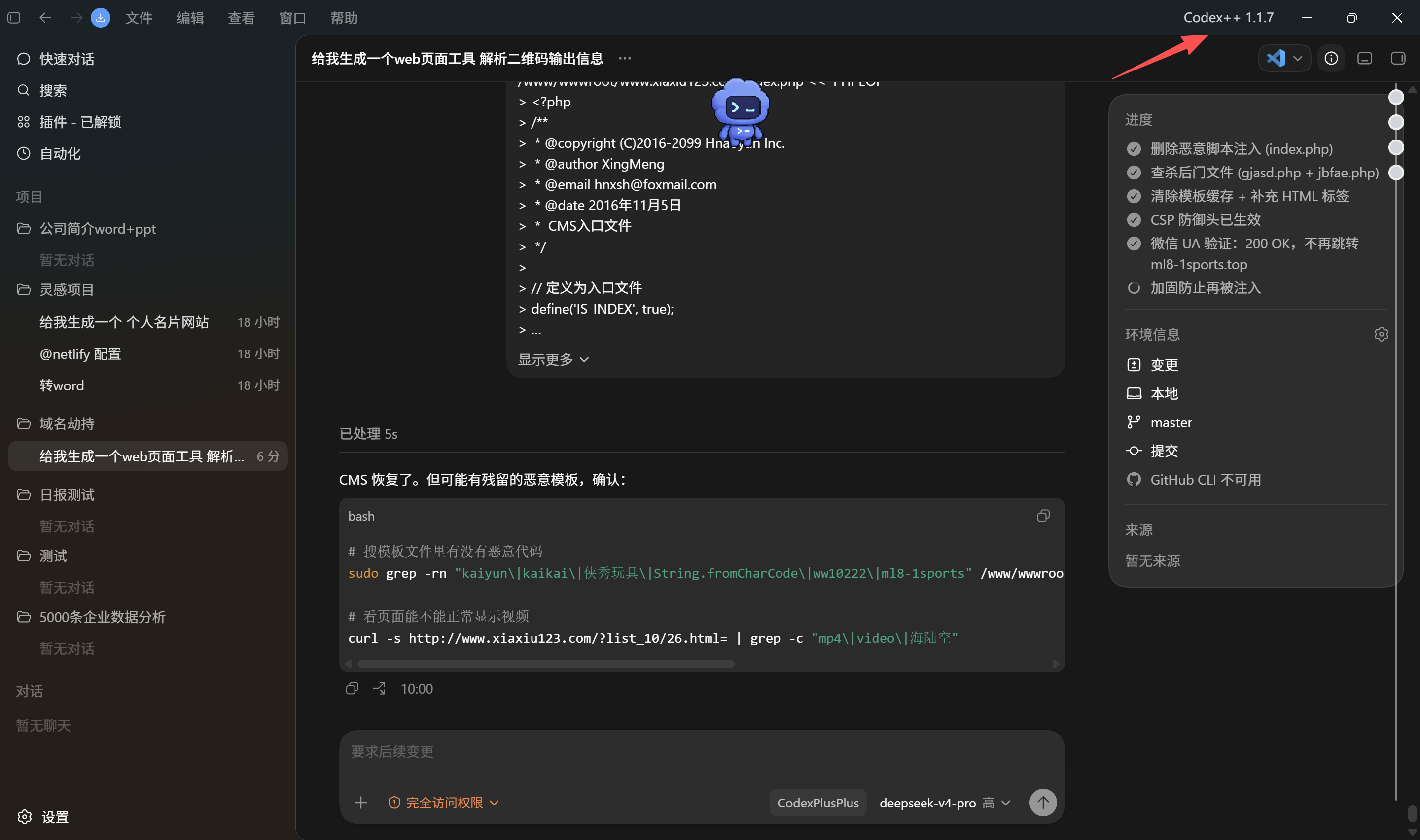
The core of this setup is to connect DeepSeek or other domestic/third-party model APIs through pure API mode, avoiding reliance on an official Codex account.
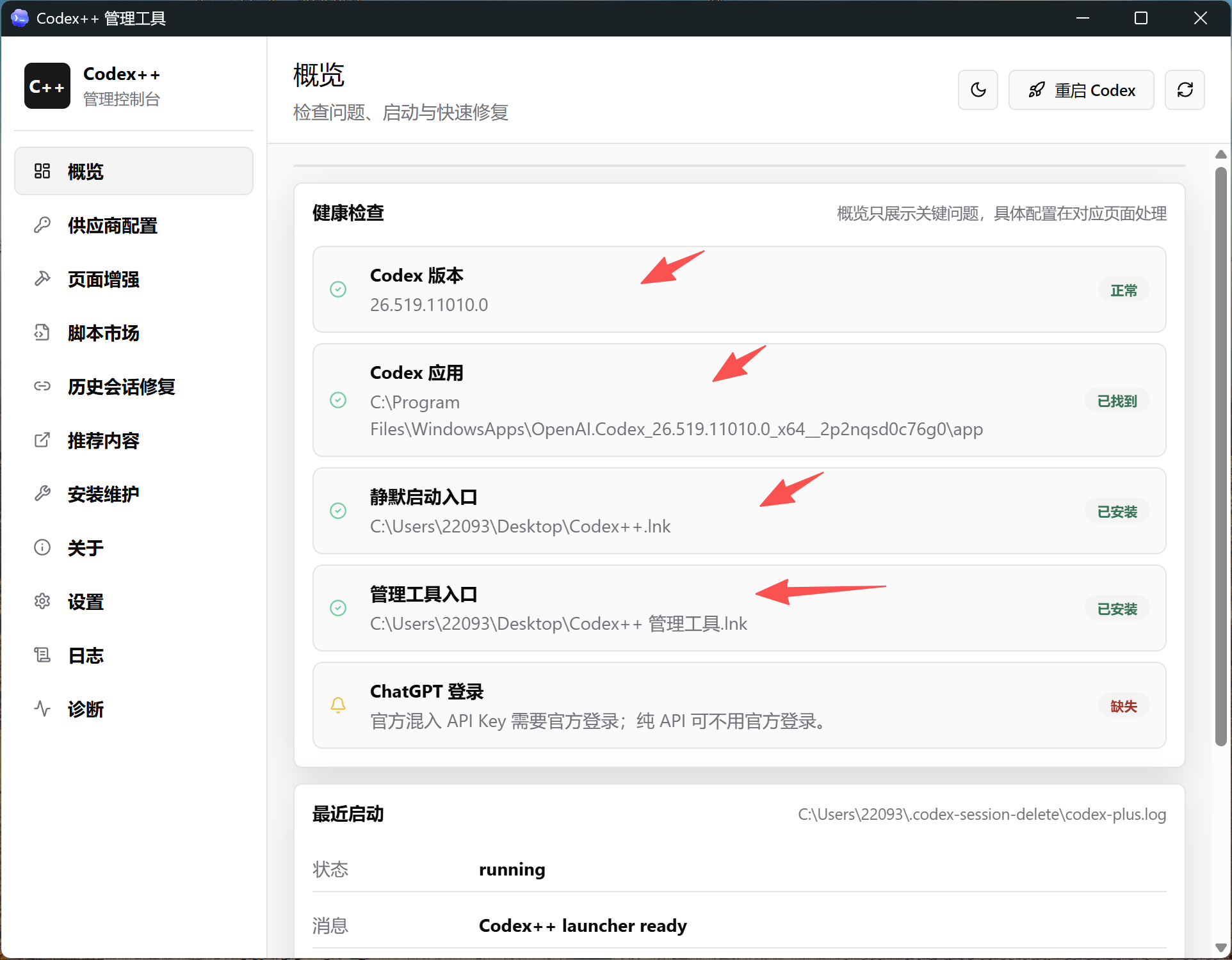
Open Codex++.
Go to Settings.
Find Provider Management.
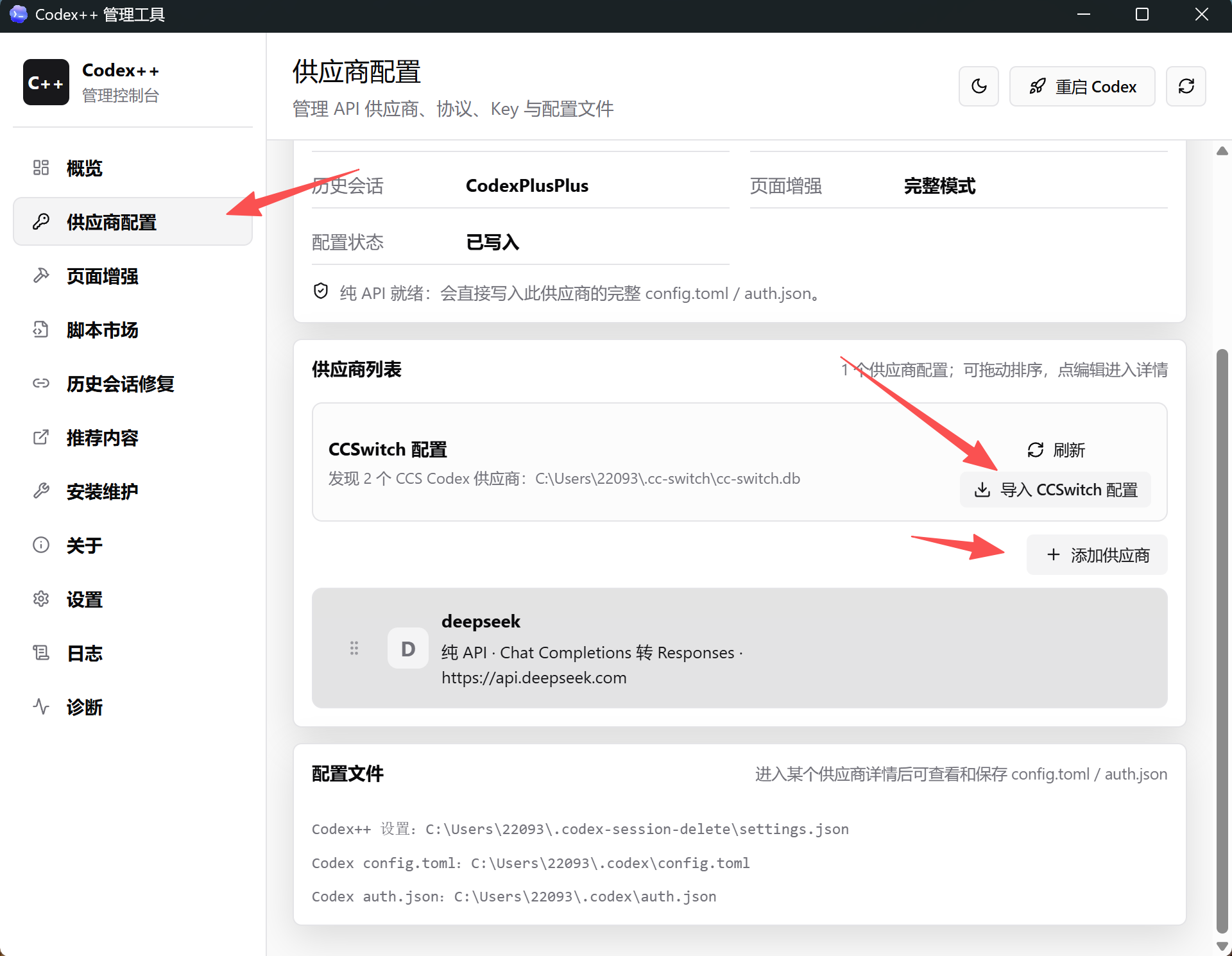
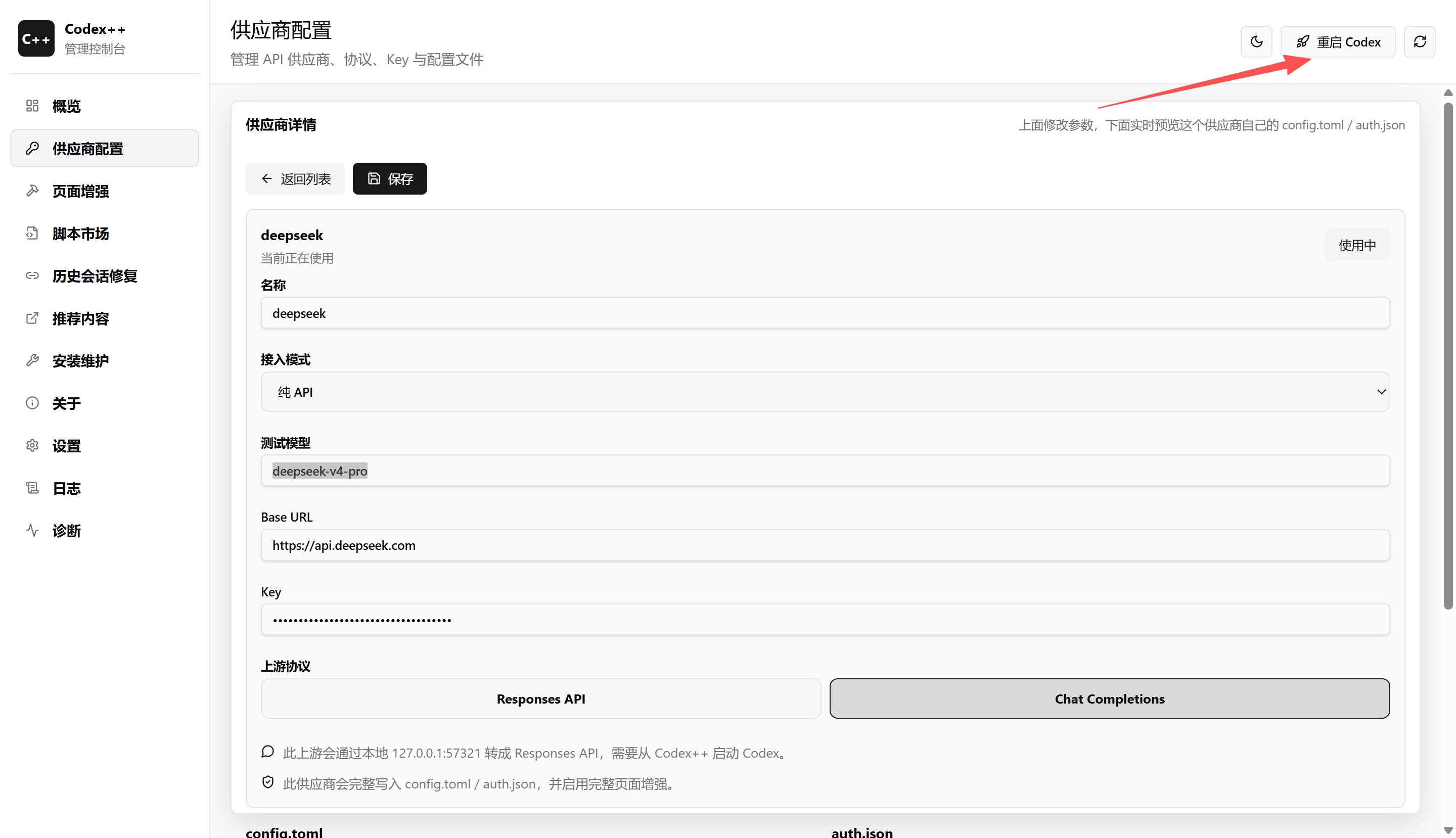
Then click Add Provider and enter an easy-to-recognize name, such as deepseek.
Key configuration fields:
Field | Recommended value / description |
Access mode | Pure API model, no official Codex account required |
Test model | Enter the provider's model name, such as |
Mix in API Key | Recommended to enable |
URL / Base URL | Fill according to provider docs, such as |
Key | Your valid API Key |
Upstream protocol | Prefer Chat Completions for better compatibility |
Not every model supports the Responses API. If your model supports Responses API, you can test its Agent capabilities. If you are not sure, start with Chat Completions to reduce compatibility risk.
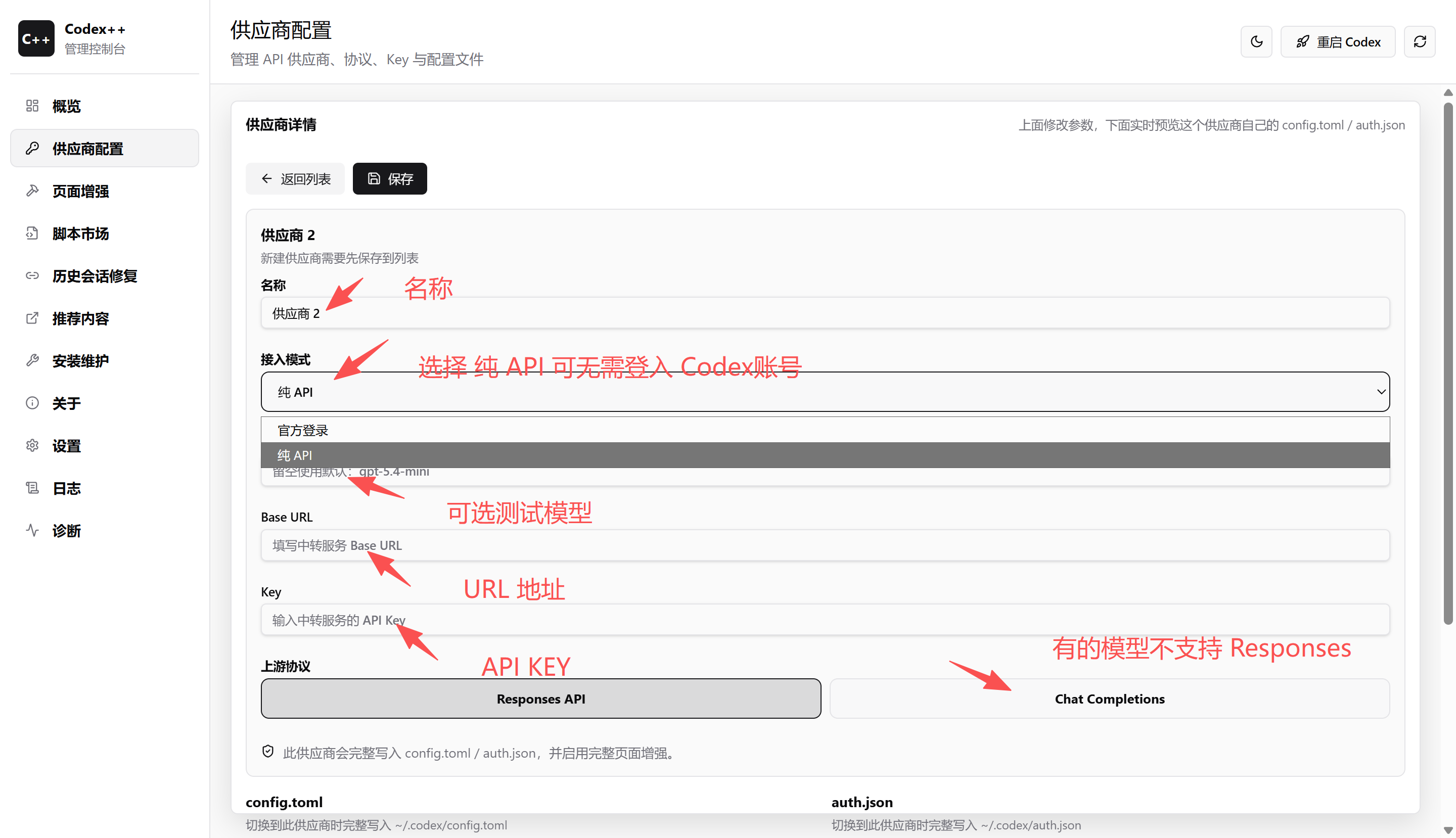
Using DeepSeek as an example, the source article provides the following tested configuration:
Name       : deepseek
Access mode: Pure API
Test model : deepseek-v4-pro
Base URL   : https://api.deepseek.com
Key        : your API key
Protocol   : Chat Completions
The most error-prone fields are Base URL, model name, and protocol.
Do not type the Base URL from memory; copy it from official documentation when possible.
The model name must match the provider dashboard or docs exactly, including casing and hyphens.
If DeepSeek is currently using the Chat Completions compatible interface, do not accidentally choose Responses API.
After saving the configuration, restart Codex through Codex++.
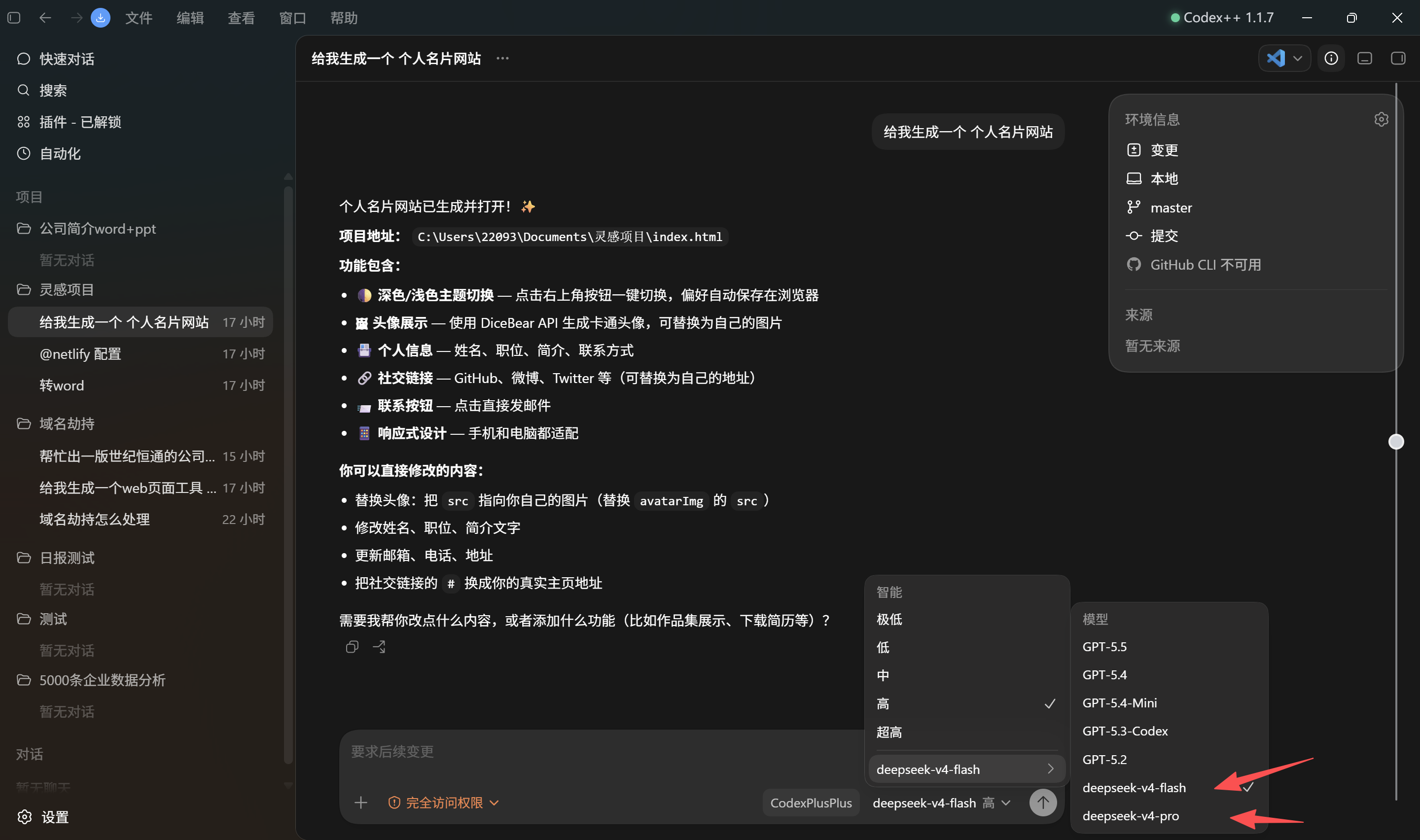
After restarting Codex, the model selection list should show the provider and model you added, for example:
deepseek / deepseek-v4-proYou can also check these signals:
Whether the Codex window top menu shows Codex++.
Whether the plugin entry is unlocked.
Whether deepseek appears in the model list.
Describe your idea once, and We0 AI can generate a showcase site, pages, and CMS, then help you attract customers and traffic after launch.
One complete project generation for free registration
Best for trying one complete generation flow and seeing a first project draft quickly.
Whether a simple coding task returns normal completion or chat output.
If all of these work, the chain between Codex Desktop, Codex++, and DeepSeek API is connected.
The source article notes that first launch or first model call may be slightly slow, especially because Codex may access some related domains during startup. If your network is unstable, you may see the app stuck on the logo screen or API requests failing.
Recommended steps:
Enable a proxy and use rule-based proxy mode.
api.deepseek.com to proxy rules, or route it correctly according to your actual network.Add Codex-related domains to proxy rules to avoid resource-loading failures.
Do not randomly add all API domains to a bypass list, because that may cause 502, 404, or connection failures.
If you never enable a proxy, Codex may stay stuck on the logo screen. This is usually not a model-configuration error; it is often a startup resource or network path issue.
Possible causes:
Wrong upstream protocol.
Extra /v1 at the end of Base URL.
Codex was not restarted after saving.
Provider name or model name was not entered cleanly.
Suggested fix:
Confirm that Chat Completions is selected.
Check whether Base URL matches the official documentation.
Save and restart Codex through Codex++.
Reopen the model selection list.
Typical errors include:
status 502 Bad Gateway
https://api.deepseek.com/ returned 404
The common cause is proxy configuration, not necessarily an API Key error. Check your proxy bypass settings and confirm that related domains are neither incorrectly bypassed nor routed through an unavailable line.
This usually happens during Codex startup. Codex may need to request ChatGPT or OpenAI-related resources, but the current network cannot access them.
Possible fixes:
Confirm that the proxy is enabled.
Add Codex-related domains to proxy rules.
Close the app and restart it through Codex++.
If it is still stuck, first check whether the original Codex app can start normally.
If you launch the original Codex app directly instead of using Codex++, the enhancement script will not be injected, so the plugin entry will not appear.
Fix:
Close Codex.
Launch it using the Codex++ desktop icon.
Check whether Codex++ appears in the top menu bar.
This setup is suitable for:
Users who want to try Codex Desktop but do not currently have an official Codex account.
Developers who want to connect DeepSeek, Qwen, or other domestic models to a coding assistant.
Users who want to keep the Codex desktop interaction while using a custom API.
Education scenarios, internal team experiments, or personal development environments.
It may not be suitable for:
Production environments that are highly sensitive to third-party injection tools.
Teams that want to use only official OpenAI-supported paths.
Users who do not want to maintain proxy, API, model-name, or protocol settings.
This kind of tutorial is useful for developers, but when publishing it on a website, blog, or knowledge base, the factual boundaries should be clear. Codex++ is a third-party tool, and DeepSeek API model names and protocol capabilities may change over time. Therefore, a specific model ID, protocol support status, or configuration path should not be presented as permanently fixed.
If a team uses We0 AI for showcase websites, case pages, or SEO/GEO content, this type of technical tutorial can be organized into a clearer structure: use cases, configuration steps, risk notes, and troubleshooting checklists. That helps search users solve problems quickly while reducing the risk of misleading them when versions change.
By combining Codex Desktop, the Codex++ enhancement launcher, and DeepSeek pure API mode, developers can try connecting domestic models to the Codex desktop experience without relying on an official Codex account.
The key points are:
Launch Codex through Codex++, not through the original Codex app directly.
In provider management, choose pure API mode and correctly fill Base URL, API Key, model name, and protocol.
If you see logo-screen hangs, 502, 404, or missing models, check proxy rules, protocol choice, and Base URL first.
This setup is useful for domestic developers, education users, and teams that want to customize the backend model behind an AI coding assistant. As long as account boundaries, third-party-tool boundaries, and API configuration boundaries are stated clearly, it is a practical extension path for the Codex desktop experience.
No. Codex++ is a third-party enhancement launcher. It is not part of OpenAI's official Codex product. It launches Codex through an external launcher and injects enhancement scripts.
The source article's approach is to use Codex++ pure API mode to connect a third-party model, avoiding reliance on an official Codex account. Actual availability may depend on the Codex version, Codex++ version, and local environment.
If you are not sure whether the model supports Responses API, choose Chat Completions first. The source article also recommends Chat Completions for DeepSeek compatibility.
/v1?Follow provider documentation. The source article specifically notes that adding an extra /v1 in some configurations may cause missing models or request failures.
Not necessarily. It is often a network or proxy-rule issue. Codex may need to access related resources during startup, so check proxy settings and domain rules first.
Start from one sentence and have a complete website in minutes.